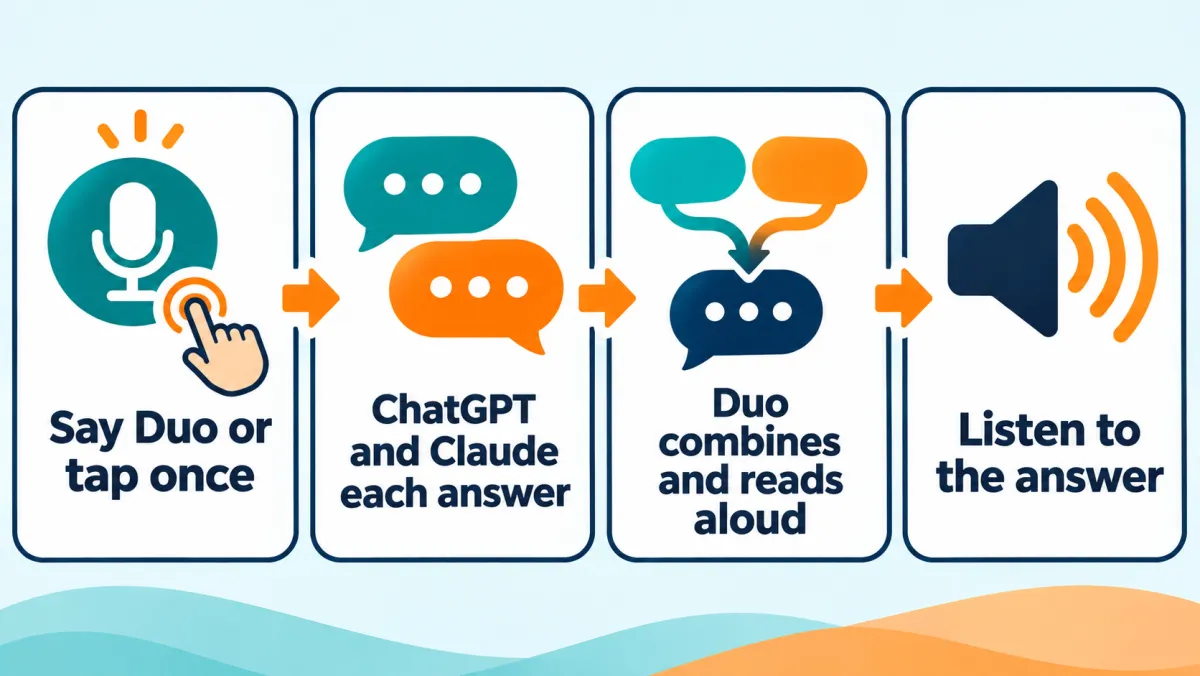
Ask ChatGPT and Claude the same question with one tap or your voice — no copying, no switching apps, no comparing two long chats by eye.
One tap, then hands off. About a minute later the result is on the screen as one text.
Poly Duo is a free iPhone shortcut that uses the ChatGPT and Claude apps you already have. Both AIs answer your question on their own, without seeing each other’s reply, and then Claude compares the two into one clear answer.
For iPhone with iOS 18 or later. Free ChatGPT and Claude accounts are enough.
Poly Duo in the accessibility community
AV
Our announcement in the community
AppleVis
AppleVis is the community of blind, DeafBlind and low vision people who use Apple technology, a Be My Eyes company since 2024. Our announcement of Poly Duo is posted there, open for questions and comments.
In a Q&A with We Are Founders, Vadym Chernets explains why Poly Duo started as an accessibility tool:
“To compare two AIs you have to copy the question, switch apps, paste, scroll and copy again. For someone with sore hands, a bad back or poor eyesight, that's slow and tiring.”
Checking a second AI by hand takes eight separate actions across two apps. Poly Duo turns all of that into a single tap or one spoken command.
By hand: 8 steps
Open ChatGPT
Ask the question
Copy the answer
Switch to Claude
Paste and add “what’s wrong?”
Wait for the second answer
Go back to the first answer
Compare both chats by eye
With Poly Duo: 1 tap or voice
Start once: press the Action Button, double-tap the back of your iPhone (Back Tap), tap the Home Screen icon, or say “Hey Siri, Duo”.
Hands off: ChatGPT answers on its own, Claude answers the same question on its own, and then Claude compares both answers.
One result: read one structured answer on screen instead of jumping between two chats.
Example question: “Take a job offer: +20% pay, but a 90-minute commute each way?”
Both agree
The role is a career step up.
Where they differ
Is the raise worth the commute? ChatGPT says yes. Claude says only after doing the per-hour math.
What to check yourself
Drive the route at rush hour. Ask for 2 remote days.
Why two independent answers matter: when GPT-6.1 Sol and Claude Opus 5.5 each answered the same 100 new questions on their own (our measurement, 26 October 2026) and agreed, they were right 72 times out of 74 (see how we measured it).
A second perspective: a disagreement is the useful part. Where the two models part ways, you get an angle and ideas you would not have thought to ask about yourself.
How Poly Duo works
Poly Duo connects your ChatGPT and Claude apps through the official Shortcuts actions those apps publish on iPhone. A run takes about a minute and spends messages from your own plans, just as asking in each app would.
You ask once
Speak your question, type it, copy text beforehand so it appears in the question box automatically, or select text in any app and tap Share → Duo.
ChatGPT answers
The ChatGPT app writes its own full answer to your question.
Claude answers on its own
The Claude app sees only your question — not ChatGPT’s answer — so it forms an independent reply.
Claude compares both
Claude compares the two independent replies and hands you one document: where both agree, where they differ, what to check yourself, and the final answer.
Voice mode, spoken setup, and quiet runs
Poly Duo is designed to work cleanly by voice and with VoiceOver, without chattering through every step or stalling on surprise pop-ups.
In short: start with “Hey Siri, Duo”, say a mode word, ask, keep your hands off for about a minute, then hear or read the result.
Spoken first setup (once)
On the very first run, before your first question, Poly Duo speaks these words aloud:
“Several windows will now appear, one after another, with the buttons ‘Always Allow’ or ‘Allow’. In each window, tap ‘Always Allow’, or ‘Allow’ if there is no such button. If tapping is hard, ask someone to help. You only go through this setup now, the first time you run Duo: after that, Duo will not ask for permissions again.”
Your first Critique asks twice more (saving its draft, sending text to Claude); after that a run asks for nothing.
Ready for voice
Once those permissions are granted, Poly Duo says aloud: “Done. Duo now works by voice.” From then on, say “Hey Siri, Duo” to start a check.
Plain-word menus for Siri and VoiceOver
Every item in the main mode menu is one or two plain words with no emoji, so it is easy to speak aloud and quick to hear in VoiceOver. What each mode does and how many messages it uses are stated once in the menu title. For everyday questions, pick Critique.
One notification when the answer is ready
During a run, Poly Duo stays quiet — no step-by-step progress banners interrupting VoiceOver. When the comparison finishes, you get one notification: “Duo — Answer ready”. The finished text opens on screen, with raw Markdown symbols removed, and you can keep it with More → Save to Notes.
Main menu items (one or two plain words):
Critique
Argue
Advisor
Compare
Synthesis
Auto
More
Finish menu (“What next?”):
Done
Another mode
Open Poly
More
How Poly Duo supports different needs
Blind and low-vision users (VoiceOver)
Run the first setup on an unlocked iPhone with VoiceOver on, and answer each permission prompt with Always Allow (or ask someone to tap through it once). After that, Poly Duo runs cleanly by voice or touch:
Launch easily: say “Hey Siri, Duo” (say “Duo”, not “open Duo”, because “open Duo” opens Duolingo). With VoiceOver, assigning Duo to Back Tap or the Action Button is often even easier.
Clean VoiceOver speech: main menu choices are one or two plain words without emoji, so VoiceOver does not read emoji names or long descriptions before every option.
No mid-run chatter: progress steps do not fire banners; you hear one notification at the end: “Duo — Answer ready”.
One text, top to bottom: VoiceOver reads the result as one ordinary text instead of two separate chats.
Clean text output: raw Markdown asterisks and heading marks are stripped from the result (except inside code blocks), so VoiceOver reads natural sentences.
Limited mobility, pain or tremor
Replace eight app-switching, copying and pasting steps with one trigger, and keep your hands free while both AIs work.
No touch to start: say “Hey Siri, Duo”. No launch setup after the one-time permission setup.
One press: Action Button, Back Tap, a Home Screen, Lock Screen or Control Center button. How to set each one: Set up the easiest way to start.
Hands off while it runs: once started, put the phone down for about a minute while ChatGPT and Claude finish (keep the phone unlocked).
Skip the mode menu (optional): after a run, open More → Critique right away next time. Turn all menus back on anytime under More → Show all menus again.
Everyone with busy hands
Like a dropped kerb built for wheelchairs and used by everyone with a pram or a suitcase: cooking, carrying a child, walking. One phrase, one result.
Start without touching the phone: say “Hey Siri, Duo”, or use Back Tap, the Action Button or a button on the Lock Screen.
Listen instead of looking: the answer is read aloud, so the phone does not have to stay in front of your eyes.
One question, not two apps: no switching between ChatGPT and Claude, no copying and pasting. It helps with busy hands, one free hand, a tremor, or hands that tire quickly.
Deaf and hard-of-hearing users
Everything in Poly Duo works completely through on-screen text — sound is never required.
Visual first setup: every spoken setup hint matches the standard iPhone permission prompts shown on screen (“Always Allow” / “Allow”), so you can complete setup silently by reading and tapping.
Visual notification: “Duo — Answer ready” arrives as an on-screen notification; no sound needed.
Text input from anywhere: type your question, copy text first so it fills the question box automatically, or select text in any app and tap Share → Duo.
Structured text output: the final answer appears on screen in plain text (Both agree / Where they differ / What to check yourself), and can be kept with More → Save to Notes.
Install Poly Duo on iPhone
Free, open source, and takes about two minutes to set up once.
Install Claude first: Poly Duo builds on its “Ask Claude” action. You need an iPhone with iOS 18 or later and both apps signed in. Free accounts are enough. Download Claude on the App Store (and install ChatGPT from the App Store if you do not have it yet).
Add the Duo shortcut
Open this page on your iPhone, tap Add Poly Duo — free (iPhone), and tap Add. If you already had Duo installed before, tap Replace (not Keep Both) so Siri and your buttons run the current shortcut.
Complete the one-time setup
Tap the Duo tile in Shortcuts with your phone unlocked. Tap Always Allow (or Allow) on each permission window as it appears. If tapping is difficult, ask someone to help — you only do this once. When it says “Done. Duo now works by voice.”, you are ready.
Ask your first question
Say “Hey Siri, Duo”, press your Action Button or Back Tap, or tap the Duo icon. Choose Critique for everyday questions.
Nothing to set up. Say “Hey Siri, Duo”. Keep the shortcut’s name as Duo.
Back Tap (iPhone 8 and newer)
Settings → Accessibility → Touch → Back Tap → Double Tap → Duo. Then a double tap on the back of the phone starts it.
Action Button (iPhone 15 Pro and newer)
Settings → Action Button → swipe to Shortcut → Duo.
Home Screen, Lock Screen or Control Center
Home Screen: in Shortcuts, touch and hold Duo → Share → Add to Home Screen. Lock Screen: touch and hold the Lock Screen → Customize → Lock Screen → tap a bottom button → Shortcut → Duo. Control Center: open it → + → Add a Control → Shortcuts → Duo.
Good to know
Keep the phone unlocked and stay in Shortcuts while Poly Duo runs: about a minute, up to 4 minutes in longer modes. A tap on the screen does not stop it.
Run stopped? Start Duo again. An interrupted Critique offers to continue where it left off within 30 minutes.
Keep the name Duo so Siri and “Another mode” can find the shortcut. Say “Hey Siri, Duo”: “open Duo” opens Duolingo.
A permission window vanished or an app says “logged out”? Open the ChatGPT and Claude apps once, check you are signed in, then run Duo again.
A new mode, the first time: iPhone may ask 1 to 4 one-time permissions for that mode.
Important decisions: two AIs can agree and both be wrong. For health, money or legal questions, use “What to check yourself” and confirm with a professional or the original source.
Privacy and open source: Poly Duo runs directly on your iPhone through your own ChatGPT and Claude apps, with no Poly server and no API keys. Source code is open on GitHub. Want all 12 modes and the research data? Visit the main Poly Duo page.
This page is checked against WCAG 2.2 level AA with pa11y (axe and HTML_CodeSniffer); at the date of the last check, 23 November 2026, it reports no errors.
You can move through it with the keyboard alone: the focus is always visible, the order follows the page, and every button, link and picture has a name or a text description.
If something gets in your way, write to info@polyhelper.ai and we will reply.